WordPress Multisite is a powerful feature that allows you to manage multiple websites from a single WordPress installation. However, with great power comes great responsibility—especially where security is concerned. One of the most critical aspects of securing a multisite network is effectively managing file permissions and access controls. Mishandling these aspects can expose your network to serious vulnerabilities that could compromise all your sites.
TLDR
Managing file permissions and protections in WordPress Multisite is crucial for maintaining security across all network websites. Use strict file and directory permission rules (generally 755 for folders and 644 for files), and avoid giving write access to sensitive areas. Make use of .htaccess restrictions, server-level protections, and regular audits to detect permission misconfiguration. Always back up regularly and stay updated on WordPress security practices.
Understanding File Permissions in WordPress Multisite
Before diving into how to manage file permissions and protection, it’s essential to understand what file permissions actually are and how they work in the context of WordPress Multisite setups.
In Unix-based systems, file permissions dictate who can read, write, or execute a file or directory. These permissions are typically represented by three sets of numbers or characters: one each for the file owner, the group associated with the file, and all other users. In the context of WordPress, these permissions directly dictate whether plugins, themes, or even network users can alter critical files.
Recommended File and Directory Permissions
- Files:
644– Read and write permissions for the owner, read-only for everyone else. - Directories:
755– Read, write, and execute permissions for the owner, and read and execute permissions for everyone else. - wp-config.php:
600– Only the owner can read and write. This file contains sensitive data like database credentials.
Applying these permissions ensures that your WordPress system files are reasonably protected from unauthorized editing or execution while still being functional for necessary processes.
WordPress Multisite Directory Structure and Risks
Unlike a single WordPress site, a multisite network shares a common set of core files while maintaining unique uploads, plugins, and theme structures for each sub-site. This shared structure can introduce potential risks if file permissions aren’t managed correctly.
Key areas to pay attention to include:
- /wp-content/uploads/sites/ – Each site on your network stores its uploaded media in a different subdirectory under this path.
- /wp-content/themes/ – Shared themes for the entire network are stored here. Improper permissions could allow local users to inject malicious code into a theme shared across the network.
- /wp-content/plugins/ – Similar to themes, plugins installed here are available to the entire network. A single compromised plugin could affect all sites.
Isolating Site-Specific Content
While the structure requires some shared directories, it’s advisable to isolate site-specific media and settings when possible. Restrict access so that even if one site is compromised, the attacker can’t traverse into other sites’ directories. Using tools like open_basedir restrictions in the server configuration can help limit access.
.htaccess and Server-Level Restrictions
Using the .htaccess file and server configurations to restrict access to sensitive files is another layer of protection you cannot skip. Since Apache-powered servers usually use .htaccess directives to control access rules, employing them properly can close many loopholes.
Examples of Useful .htaccess Rules:
# Protect wp-config.php
<files wp-config.php>
  order allow,deny
  deny from all
</files>

# Disable directory browsing
Options -Indexes

# Block access to sensitive file types
<FilesMatch "\.(htaccess|htpasswd|ini|log|conf|env)$">
  Order Allow,Deny
  Deny from all
</FilesMatch>
Also, if you’re using Nginx or some other server setup, equivalent rules should be added at the server configuration level instead of relying on .htaccess.
Using File Ownership Smartly
File ownership determines which user account on the server has privileges over files. Correct ownership is just as essential as permissions. Ideally, files should be owned by the user account that the web server is running under (typically www-data), but you can set stricter permissions and ownership policies when deploying a hardened environment.
Example: If your deployment process is handled by an administrator but the server runs as www-data, then:
- Your deployment user should own the files:
adminuser:adminuser - Set group ownership to the web server’s group and assign read-access:
chown -R adminuser:www-data .
This way, your deployment process has full access, while the web server has only what it needs.
Tools to Automate and Monitor Permissions
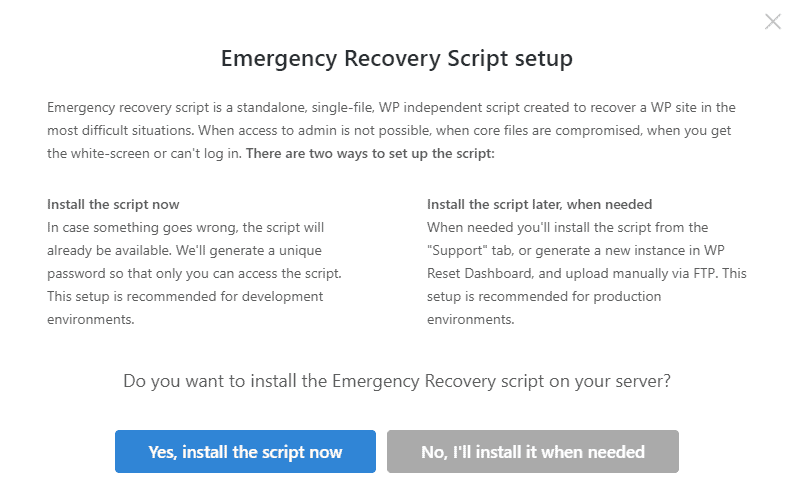
Manually setting file permissions on a large multisite network can be tedious and prone to human error. Instead, use tools or scripts to automate the process and audit permissions consistently.
Useful Tools:
- WP-CLI: You can use WP-CLI to detect and repair file permission anomalies within your structure.
- OSSEC or Fail2Ban: Offer intrusion detection and can alert you when file modifications occur unexpectedly.
- Custom Bash Scripts: A shell script using
findandchmodcommands can enforce a strict permission model nightly.
Plugin Considerations in WordPress Multisite
Not all plugins are designed with multisite capability in mind. Some may incorrectly write files to unsafe directories or expect permission levels that go against best practices. Therefore, always evaluate plugins carefully before activating them network-wide.
Consider the following before installing a plugin:
- Check Compatibility: Is it listed as multisite-compatible in the WordPress plugin repository?
- Code Review: If possible, perform a basic code review to check how it handles file accesses and user privileges.
- Least Privilege Principle: Grant plugins the minimum permissions they need to function.
Backups and Disaster Recovery
No matter how secure your file permissions are, planning for backup and recovery is critical. Misconfigurations, vulnerabilities, or even user errors can still pose a risk.
Best Practices:
- Use a backup solution that supports multisite configurations, such as UpdraftPlus Premium, BlogVault, or Snapshot Pro.
- Automate backups daily and store them in secure, remote locations like AWS S3 or Google Drive.
- Use checksum validation to detect unauthorized changes in your filesystem.
Conclusion
Managing file permissions and file protection mechanisms in WordPress Multisite is not just a recommendation—it’s an essential part of a secure and robust network. With numerous sites depending on a centralized codebase, a single vulnerability can cascade into a network-wide breach.
Treat permissions and file management like the critical security fronts they are. Apply the correct permission models, use server-level restrictions, audit regularly, and never rely solely on plugins to manage these settings for you. Your attention to detail here significantly reduces your network’s attack surface and strengthens your entire WordPress Multisite infrastructure.