


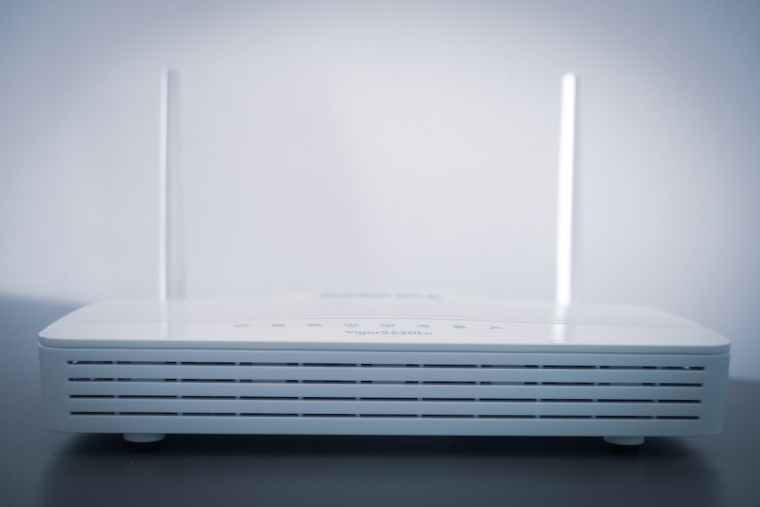
A network security key is the password used to connect a device to a Wi-Fi network. It protects the router from unauthorized access and keeps data on the network safer from outsiders. When a household member, employee, or guest needs to connect a new device, knowing where to find this key on an already connected device can save time and avoid resetting the router.
TLDR: A network security key is usually the same thing as a Wi-Fi password. On Windows, it can be viewed through Wi-Fi properties or Command Prompt; on macOS, it can be found in Keychain Access or copied from Wi-Fi settings. On Android, users can often reveal it through the Wi-Fi sharing QR code, while on iPhone, iOS 16 and newer can display saved Wi-Fi passwords after authentication.
What Is a Network Security Key?
A network security key is the credential required to join a protected wireless network. It may also be called a Wi-Fi password, WPA key, WPA2 key, or wireless password. Most home and office routers use WPA2 or WPA3 encryption, and the network security key is what allows approved devices to communicate securely with the router.
In many cases, the key is printed on a label attached to the router. However, if it has been changed from the default password, the label may no longer be accurate. Fortunately, a saved password can often be retrieved from a device that is already connected to the network.

How to Find the Network Security Key on Windows
On Windows, a saved Wi-Fi password can be found through the system’s network settings. The device must usually have connected to the network before, and administrator permission may be required.
Method 1: Use Wi-Fi Properties
- Open the Control Panel.
- Select Network and Internet, then choose Network and Sharing Center.
- Click the name of the connected Wi-Fi network beside Connections.
- Select Wireless Properties.
- Open the Security tab.
- Check the box labeled Show characters.
- The network security key will appear in the Network security key field.
This method is useful when the computer is currently connected to the Wi-Fi network. If the password does not appear, the account may not have the necessary permissions.
Method 2: Use Command Prompt
Windows can also display saved Wi-Fi passwords through Command Prompt:
- Open Command Prompt as an administrator.
- Type
netsh wlan show profilesand press Enter. - Find the Wi-Fi network name in the list.
- Type
netsh wlan show profile name="NetworkName" key=clear, replacing NetworkName with the actual Wi-Fi name. - Look for Key Content under Security settings.
The value beside Key Content is the saved network security key.
How to Find the Network Security Key on macOS
On macOS, saved Wi-Fi passwords are stored securely and normally require the Mac’s account password, Touch ID, or administrator approval to view.
Method 1: Use Keychain Access
- Open Keychain Access from the Applications > Utilities folder, or search for it with Spotlight.
- In the sidebar, select System or iCloud.
- Use the search bar to find the Wi-Fi network name.
- Double-click the matching network entry.
- Check Show password.
- Enter the Mac administrator username and password if prompted.
After authentication, the saved Wi-Fi password will be displayed. If the network is synced through iCloud Keychain, it may also appear on other Apple devices linked to the same Apple ID.
Method 2: Use Wi-Fi Settings
On newer versions of macOS, users may be able to copy a saved Wi-Fi password directly from System Settings:
- Open System Settings.
- Select Wi-Fi.
- Find the current or known network.
- Click the information button or more options menu.
- Choose Copy Password, if available.
The password can then be pasted into a secure note, message, or password manager as needed.


How to Find the Network Security Key on Android
Most modern Android phones allow saved Wi-Fi details to be shared through a QR code. Depending on the device manufacturer and Android version, the password may appear below the QR code or may need to be decoded by another device.
Steps for Android 10 and Newer
- Open Settings.
- Tap Network & Internet, Connections, or a similarly named menu.
- Select Wi-Fi.
- Tap the connected network or choose a saved network.
- Select Share.
- Authenticate with a PIN, fingerprint, face unlock, or pattern.
- Review the displayed QR code and password, if shown.
On many Android phones, the password appears in plain text under the QR code. On others, only the QR code is shown. Another phone can scan the QR code to join the network without manually typing the password.
Some older Android versions do not reveal saved Wi-Fi passwords without root access. In those cases, checking the router settings or another connected device is usually safer and easier.
How to Find the Network Security Key on iPhone
Apple added a simple way to view saved Wi-Fi passwords in iOS 16 and later. The user must unlock the password using Face ID, Touch ID, or the device passcode.
Steps for iOS 16 and Newer
- Open Settings.
- Tap Wi-Fi.
- Tap the information icon beside the connected network, or tap Edit to see saved networks.
- Tap the Password field.
- Authenticate with Face ID, Touch ID, or the passcode.
- The Wi-Fi password will appear and can be copied.
For iPhones running older iOS versions, the password may not be directly visible. If iCloud Keychain is enabled, a Mac signed in with the same Apple ID may show the password through Keychain Access. Another option is to access the router’s admin page and check the wireless settings.

Other Places to Find the Network Security Key
If none of the devices reveals the key, there are other reliable places to check:
- Router label: Many routers include the default Wi-Fi name and password on a sticker.
- Router admin page: The wireless password can often be viewed or changed by signing in to the router’s web interface.
- Internet provider app: Some internet service providers include Wi-Fi password management in their mobile apps.
- Password manager: If the password was stored manually, it may be saved in a vault.
- Network administrator: In workplaces, schools, or shared housing, an authorized administrator should provide access.
Security Tips After Finding the Key
Once a network security key is found, it should be handled carefully. Sharing it with too many people can increase the risk of unauthorized access, slower speeds, or exposure of connected devices.
- Use a strong password with a mix of letters, numbers, and symbols.
- Avoid using personal details such as names, birthdays, or addresses.
- Enable WPA2 or WPA3 encryption on the router.
- Change the password if unknown devices appear on the network.
- Use a separate guest network for visitors when possible.
FAQ
Is a network security key the same as a Wi-Fi password?
Yes. For most home and office networks, the network security key is the Wi-Fi password used to connect devices to the wireless network.
Can a network security key be found without being connected?
It may be possible if the device connected to the network in the past and saved the password. Otherwise, the router label, router settings, or network administrator may be needed.
Why does Windows not show the password?
Windows may require administrator permission. If the user account lacks access or the profile is not saved, the password may not be visible.
Can iPhone share Wi-Fi without showing the password?
Yes. Apple devices can share Wi-Fi access with nearby trusted contacts, and newer iPhones can also display the saved password after authentication.
What should be done if the network security key is lost?
If no device has the saved password, the router admin page may allow the password to be changed. As a last resort, the router can be reset, but this usually restores factory settings and requires reconfiguration.